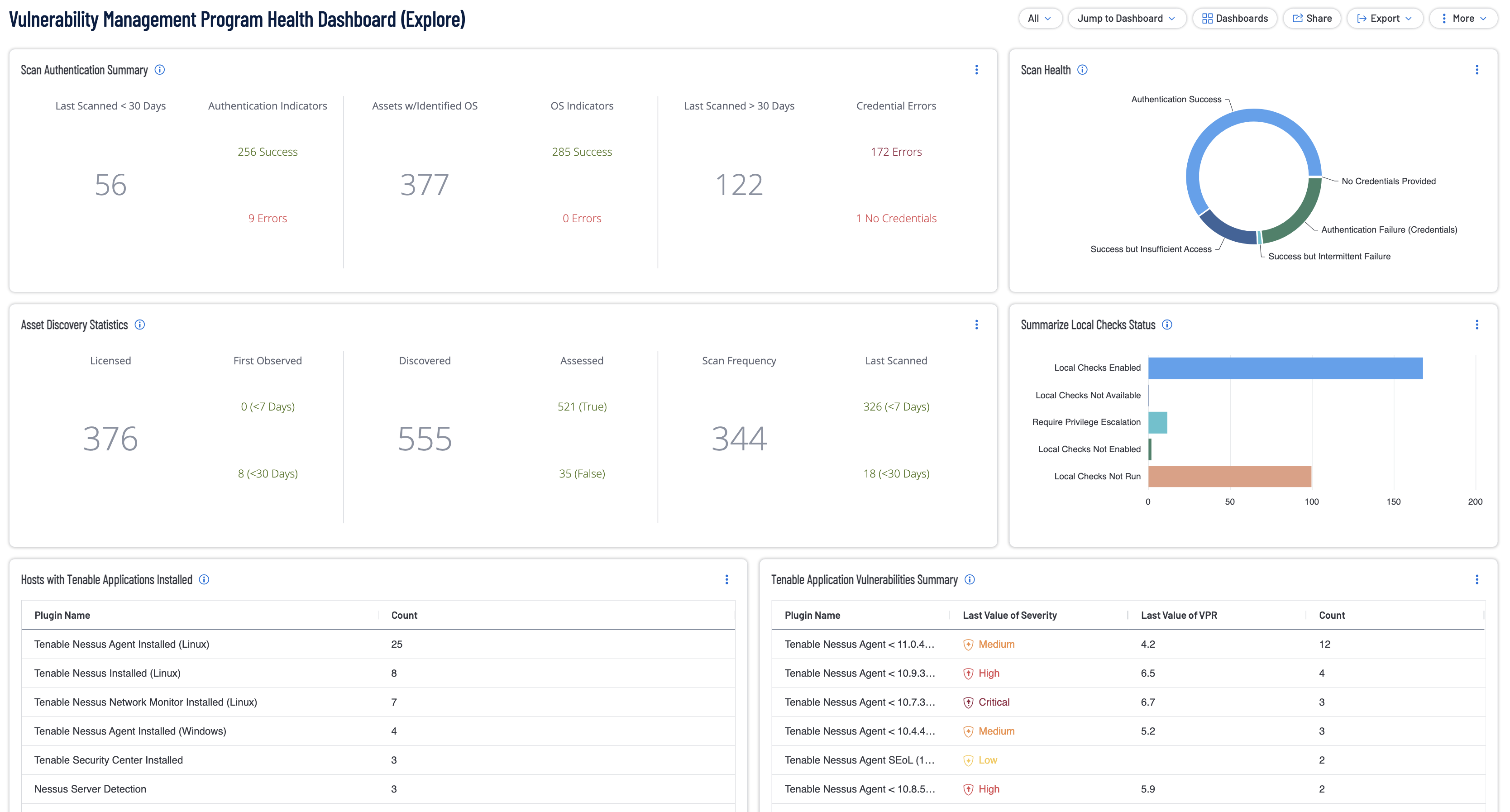
Securing the Tenable ecosystem is just as vital as the vulnerabilities the tools are meant to find. A blind spot in your scanning coverage or an unpatched vulnerability within a security agent is a silent failure in your defensive perimeter. In an era where attackers target the very tools used by defenders, ensuring your security apps are visible and current is a major requirement for operational resilience. This dashboard provides a centralized command center to monitor the health and efficacy of your deployment so you can move from reactive patching to proactive lifecycle management.
Designed around the principles of the Cyber Exposure Lifecycle, these widgets allow teams to detect and act on deployment risks with high precision. By contrasting discovered assets against assessed assets, the dashboard highlights the gap between knowing a device exists and actually understanding its risk profile. To ensure maximum accuracy, the logic relies on successful authenticated results performed via the Tenable Agent or credentialed scanning. Across the dashboard, a rigorous filtering logic is applied to maintain a focus on actionable data by prioritizing active detections seen within the last 30 days.
Credentialed or agent scanning with privileged access provides the most comprehensive and accurate scanning results. Credentialed scans originate from a Tenable Nessus scanner that reaches out to the hosts targeted for scanning, while agent scans run on hosts regardless of network location or connectivity and then report the results back to the manager. Credentialed scanning is more complicated than agent scanning and requires authentication with sufficient privileges to enumerate software, installed applications, patch status, and identify configuration problems. Tenable uses multiple protocols, such as SMB, SSH, HTTPS, and SNMP, to conduct authenticated scans against assets. Analysts can drill into the summary information displayed in the dashboard to troubleshoot upstream scanning problems that can adversely impact downstream reporting to stakeholders.
The Tenable licensed asset limit determines the number of assets that can be scanned for vulnerabilities. Comparing this finding to the number of discovered assets in the environment can help analysts determine if the scanning scope is too narrow. Very often critical business assets are added to the environment without the knowledge of the security or IT teams. Drilling into the data for assets that are discovered but not scanned can reveal assets with a high criticality rating that are not being scanned.
The dashboard maintains a view of active risk by excluding any vulnerabilities with a state of fixed or a risk modified status of accepted. Dedicated widgets for troubleshooting and scan information allow engineers to quickly diagnose why a scan may have fallen short of a local check status to ensure high data fidelity. While discovery and troubleshooting components focus on informational data to assist with hygiene, vulnerability specific widgets filter for low through critical severities to drive efficient remediation. This approach helps organizations move beyond best effort scanning and toward a verified security posture.
This comprehensive view of the Tenable environment empowers security and application teams to move beyond checking a box for compliance. By presenting findings in a manner that focuses on the most significant deployment gaps first, remediation becomes more efficient and the attack surface is reduced. Progress can be visually tracked against established security goals to ensure your investment provides the protection and visibility your enterprise demands. The requirement for this dashboard is Tenable Vulnerability Management. The requirement for this dashboard is: Tenable Vulnerability Management (Nessus).
Widgets
Tenable Application Vulnerabilities Summary (Explore): With any application install, the software needs to be kept up-to-date on the latest security patches and fixes. This widget lists Tenable apps that are out-of-date and need to be updated to keep them secure and operational. The widget achieves this by utilizing the CPE filter set to look for plugins with the Tenable in the name. Additional filters used are the Last Seen, severity, State, and Risk Modified filters to only display non-info severity non-fixed plugins that were last seen within the last 30 days and who's risk has not been accepted. The requirements for this widget is: Tenable Vulnerability Management.
Assets with No Local Check Scan Result Within the Last 30 Days (Explore): This widget displays assets that have been seen in the past 30 days, but no Local Check scan in 30 days - with either the Tenable Agent (for Windows, Linux and Mac OS assets) or Credentials that work (for either OS assets or network, etc. assets). Working, Local Check Scans are the key element in fully assessing the assets for risk and fully enumerating the installed OS, applications, running services and patching (and also key to most if not all compliance scanning). This widget filters on Source to ensure data being considered is only coming from Nessus Agent, Nessus Scan, or NNM data. The table is further filtered using the Last Authenticated Scan filter set to older than the last 30 days or just not existing. The requirements for this widget is: Tenable Vulnerability Management.
Assets with Tenable Agent and an Agent Scan Result in the Last 30 Days (Explore): This widget displays the Windows, Linux and Mac assets that have the Tenable Agent installed and have an Agent Scan result within the past 30 days - with results broken out by OS. The widget utilizes the Last Authenticated Scan Filter set to within the last 30 days, the Last Seen filter set to within the last 30 days and the Source Filter set to Nessus Agent. The table is sorted by count in descending order. The requirements for this widget is: Tenable Vulnerability Management.
Assets That Have Not been Seen For More Than 365 days (Explore): This widget shows the assets that have not been seen for more than 365 days. If you are scanning everything you want to scan each month (ideally weekly or daily scans), this is likely stale data from assets that have been decommissioned or are no longer around. Check to verify that you also don't have Exclusion Rules for these assets. If you don't have exclusions and you are scanning all in-scope assets on a regular basis, you also want to check under Settings > Sensors > Nessus Scanners > Networks to verify that you have Asset Age Out turned on and what that Age Out timeframe is so that you can Age Out old data based upon your needs. This widget utilizes the Last Seen filter set to greater than 365 days. The requirements for this widget is: Tenable Vulnerability Management.
Scan Information Plugin Results Summary (Explore): This widget displays the Host Discovery Scan plugin results. This set of Host Discovery Scan plugins are meant to allow you to perform 'radar sweep' style scans across your infrastructure to find live hosts, without consuming licensing. This allows you to find live IP hosts on your network ranges so that you can pull unknown and unmanaged assets into your more detailed scanning processes. Host Discovery Scan plugin results are limited to this small, targeted set of plugins to allow for more rapid host discovery across your subnets. Host Discovery Scans do not include the other 200,000+ asset information, vulnerabilities or patching detail plugins - as those are part of more detailed scan types. This widget displays your Host Discovery Scan results for all-time - ensure discovery scans are being performed across the in-scope environment on a regular basis (ideally every week - but at least monthly, if weekly discovery scans are not possible. If you are already performing vulnerability scans across your subnet ranges, these discovery plugin results are also included in those scans.) The requirements for this widget is: Tenable Vulnerability Management.
Host Discovery Scan Plugin Results Summary (Explore): This widget displays the Host Discovery Scan plugin results. This set of Host Discovery Scan plugins are meant to allow you to perform 'radar sweep' style scans across your infrastructure to find live hosts, without consuming licensing. This allows you to find live IP hosts on your network ranges so that you can pull unknown and unmanaged assets into your more detailed scanning processes. Host Discovery Scan plugin results are limited to this small, targeted set of plugins to allow for more rapid host discovery across your subnets. Host Discovery Scans do not include the other 200,000+ asset information, vulnerabilities or patching detail plugins - as those are part of more detailed scan types. This widget displays your Host Discovery Scan results for all-time - ensure discovery scans are being performed across the in-scope environment on a regular basis (ideally every week - but at least monthly, if weekly discovery scans are not possible. If you are already performing vulnerability scans across your subnet ranges, these discovery plugin results are also included in those scans.) The requirements for this widget is: Tenable Vulnerability Management.
Discovered Vendor Agents and Clients Summary (Explore): This widget displays all of the various vendor Agents and Clients discovered on your assets - sorted by the most prevalent ones. You will also likely find agents/clients at the bottom of this that are historical artifacts that you want to clean up and uninstall. The widget utilizes the Plugin Name filter with a wild card to look for plugins with client or agent in their name and also not include plugins with SSL Service or TLS Service in their name. Additional filters used are the Last Seen, severity, State, and Risk Modified filters to only display info severity non-fixed plugins that were last seen within the last 30 days and who's risk has not been accepted. The requirements for this widget is: Tenable Vulnerability Management.
Assets Seen in Last 30 Days with No Licensed Scan Result (Explore): This widget displays the assets that have been seen in the past 30 days, but where you currently have no Licensed scan result. A Licensed Scan is anything beyond a basic Host Discovery Scan (such as a non-Credentialed subnet scan or a Local Check scan with Credentials or the Tenable Agent). Working, Local Check Scans are the key element to fully enumerate and assess your assets for risk and the installed OS, applications, running services and patching (and also key to most if not all compliance scanning). This widget filters on Source to ensure data being considered is only coming from Nessus Agent, Nessus Scan, or NNM data. The table is further filtered using the Last Authenticated Scan filter set to older than the last 30 days or just not existing. The requirements for this widget is: Tenable Vulnerability Management.
Scan Authentication Summary (Explore): The Scan Authentication Summary (Explore) widget provides a summary of scan health in relation to authentication success and failures. System and network devices must be routinely scanned to ensure they are operating in compliance with organizational and regulatory requirements for vulnerability and configuration management. Evidence of scanning activities is often required by regulatory frameworks and Service Level Agreements (SLAs). Credentialed scanning, which requires authentication to the device, provides the most accurate scanning results. The widget is divided into 3 sections: The Last Scanned within 30 days section displays counts of successful or failed authentications. The Assets with identified Operating Systems section displays counts of successful and failed operating system identification. The Last Scanned older than 30 days section displays counts credential errors. The requirements for this widget are: Tenable.io Vulnerability Management (Nessus, NNM).
Top Exploitable Ports (Explore): This widget displays the top exploitable ports found in the environment, sorted from the highest count to lowest. The first column identifies the port number that is exploitable, followed by a count of how many were discovered. Hovering over the 'All Values of Severity' bar displays a percentage of severity level discovered for each port.The requirements for this widget is: Tenable Vulnerability Management (Nessus, NNM).
Summarize Local Checks Status (Explore): The Summarize Local Checks Status widget provides summaries of local checks status. These local check plugins provide a list of the issues Nessus detects when running a scan. The errors are logged along with the reporting plugin and protocol, if available. The plugins also provide summaries of particular types of authentication local check problems that have been reported by other plugins and report the plugins that encountered these issues. The requirements for this widget are: Tenable.io Vulnerability Management (Nessus, NNM).
Scan Health (Explore): The Scan Health (Explore) widget provides a summary of scan health in relation to authentication success and failures. System and network devices must be routinely scanned to ensure they are operating in compliance with organizational and regulatory requirements for vulnerability and configuration management. Evidence of scanning activities is often required by regulatory frameworks and Service Level Agreements (SLAs). Credentialed scanning, which requires authentication to the device, provides the most accurate scanning results. The five columns display vulnerability counts related to: Authentication Success - Scans authenticate successfully with full administrator/root privileges. Scan results will be the most comprehensive. Success but Insufficient Access - Scans authenticate successfully, but do not have privileged access. Scan results will be limited to what a local non-privileged user could see. Success but Intermittent Failure - Scan credentials intermittently fail, which could be caused by session rate limits, session concurrency limits, or other issues preventing consistent authentication success. Authentication Failure (Credentials) - The credentials provided were incorrect. No Credentials Provided - No credentials were provided. The requirements for this widget are: Tenable.io Vulnerability Management (Nessus, NNM).
Current Upstream Scanning Problems Summary (Explore): This widget displays plugins that will assist a user in finding upstream scanning problems or symptoms that point to upstream scanning problems - especially with credentialed/authenticated scans. The filters used are the Last Seen, severity, State, and Risk Modified filters to only display info severity non-fixed plugins that were last seen within the last 30 days and who's risk has not been accepted. Most importantly the widget is filtered on a list of plugin IDs that point to upstream scanning problems. The requirements for this widget is: Tenable Vulnerability Management.
Assets with Licensed Scan Results Within The Last 30 days (Explore): This widget displays the assets that have had a Licensed scan in the past 30 days. A Licensed Scan is anything beyond a basic Host Discovery Scan (such as a non-Credentialed subnet scan or a Local Check scan with Credentials or the Tenable Agent). Assets should be scanned with a Local Check Scan wherever possible - working, Local Check Scans are the key element to fully enumerate and assess your assets for risk and the installed OS, applications, running services and patching (and also key to most if not all compliance scanning). This widget displays the data by utilizing the Licensed Scan filter set within the last 30 days and the Source filter set to Nessus Agent, Nessus Scan, or NNM. The requirements for this widget is: Tenable Vulnerability Management.
Vulnerability Summary by CVSS (Explore): The following table displays breakout of your Low, Medium, High and Critical Severity Vulnerabilities based upon CVSS Severity. Tenable highly recommends that you focus on the Exploitability of Vulnerabilities. Prioritize exploitable vulnerabilities and leverage Tenable's Vulnerabilities Priority Rating (VPR) for vulnerabilities, to understand the current, real-world threat - and prioritize accordingly. The widget is sorted by severity. The requirement for this widget is: Tenable Vulnerability Management (Nessus).
Asset Discovery Statistics (Explore): The Asset Discovery Statistics (Explore) widget displays statistics for Tenable.io licensed assets that were first observed less than 7 days ago and less than 30 days ago. The Tenable.io licensed asset limit determines the number of assets that can be scanned for vulnerabilities. The first section displays the total number of licensed assets. The middle column displays the total number of newly discovered assets that are not counted against the license. The last column displays the number of licensed assets that were successfully authenticated with credentials and scanned. More license count details can be viewed on the License page in Settings in Tenable.io. Additionally, the widget is filtered to include four asset types; Host, Web Applications, Cloud Resources, and Domain Inventory. The requirements for this widget are: Tenable.io Asset Data from Tenable.io Vulnerability Management, Tenable Web Application Security (WAS), Tenable.cs, Tenable Lumin.
Assets That Have Not Been Seen for More than 180 Days (Explore): This widget displays the assets that have not been seen for more than 180 days. If you are scanning everything you want to scan each month (ideally weekly or daily scans), this is likely stale data from assets that have been decommissioned or are no longer around. Check to verify that you also don't have Exclusion Rules for these assets. If you don't have exclusions and you are scanning all in-scope assets on a regular basis, you also want to check under Settings > Sensors > Nessus Scanners > Networks to verify that you have Asset Age Out turned on and what that Age Out timeframe is - so that you can Age Out old data, based upon your needs. This widget utilizes the Last Seen filter set to greater than 180 days. The requirements for this widget is: Tenable Vulnerability Management.
Assets with Tenable Agent but no Agent Scan within Last 30 Days (Explore): This widget displays the Windows, Linux and Mac assets that been seen in the last 30 days and have the Tenable Agent installed, but no Agent Scan result within the past 30 days. The results are broken out by OS. This widget filters on Source to ensure data being considered is only coming from Nessus Agent data. The table is further filtered using the Last Authenticated Scan filter set to older than the last 30 days or just not existing. The requirements for this widget is: Tenable Vulnerability Management.
Discovered Assets Seen in Last 30 Days (Explore): This table displays the assets that have been seen in the last 30 days, where you only have Discovery information (no vulnerability data or detailed asset info) - they need to be pulled into your scanning processes to be Assessed (with the goal being to get Local Check scan results with the Tenable Agent or working Credentials and to scan at least weekly wherever possible). This widget utilizes the Last Seen Filter set to within the last 30 days, the Sources filter to ensure the query only looks at Nessus Scan, Nessus Agent, or NNM data as well as the Assessed vs. Discovered filter set to Discovered. The requirements for this widget is: Tenable Vulnerability Management.
Hosts with Tenable Applications Installed (Explore): This widget list the Windows, Linux and Mac hosts where the most recent scan results confirmed that a Tenable application was installed. The widget achieves this by utilizing the CPE filter set to look for plugins with the Tenable in the name. Additional filters used are the Last Seen, severity, State, and Risk Modified filters to only display info severity non-fixed plugins that were last seen within the last 30 days and who's risk has not been accepted. For Agent scanning, you also want to ensure your Agents are all in an Agent Group and that the Agent Group has an associated scan job. The requirements for this widget is: Tenable Vulnerability Management.
Patching and Troubleshooting Findings Summary (Explore): This widget displays the plugins that provide info about your patching/remediation workflow, including where you have assets that are stuck on a Required Reboot to apply related patching. The Patch Report plugin provides info on all of the patches that the endpoint currently needs - providing a useful asset-level patching view for stakeholders. The widget achieves this by utilizing the Plugin ID filter set to several lists. Additional filters used are the Last Seen, severity, State, and Risk Modified filters to only display info severity non-fixed plugins that were last seen within the last 30 days and who's risk has not been accepted. The requirements for this widget is: Tenable Vulnerability Management.
Assets with Local Check Scan Results in Last 30 days (Explore): This widget displays the assets with Local Check scan results in the past 30 days with either the Tenable Agent (for Windows, Linux and Mac OS assets) or Credentials that work (for either OS assets or network, etc. assets). Working, Local Check Scans are the key element in fully assessing your assets for risk and fully enumerating the installed OS, applications, running services and patching (and also key to most if not all compliance scanning). This widget filters on Source to ensure data being considered is only coming from Nessus Agent, Nessus Scan, or NNM data. The table is further filtered using the Last Authenticated Scan filter set to within the last 30 days. The requirements for this widget is: Tenable Vulnerability Management.
Tenable One
Request a demo
The world’s leading AI-powered exposure management platform.
Thank You
Thank you for your interest in Tenable One.
A representative will be in touch soon.
Form ID: 7469
Form Name: one-eval
Form Class: c-form form-panel__global-form c-form--mkto js-mkto-no-css js-form-hanging-label c-form--hide-comments
Form Wrapper ID: one-eval-form-wrapper
Confirmation Class: one-eval-confirmform-modal
Simulate Success